
Only institutes with more than one centre need several branches. Independent teachers don't have branches — the screen says Branches aren't part of your setup.
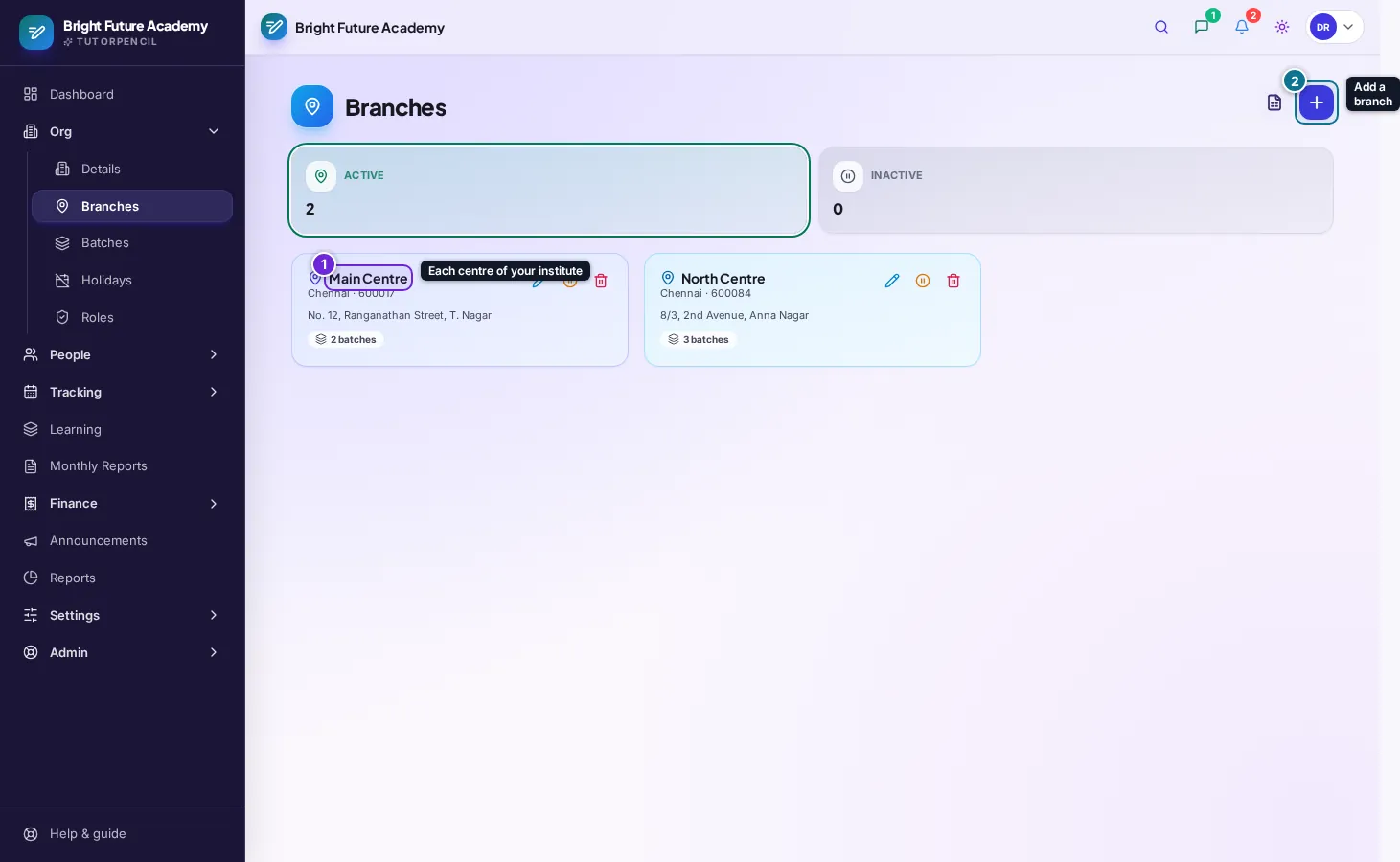
- Open Org → Branches and press Add branch (or Import branches to load several from a sheet).
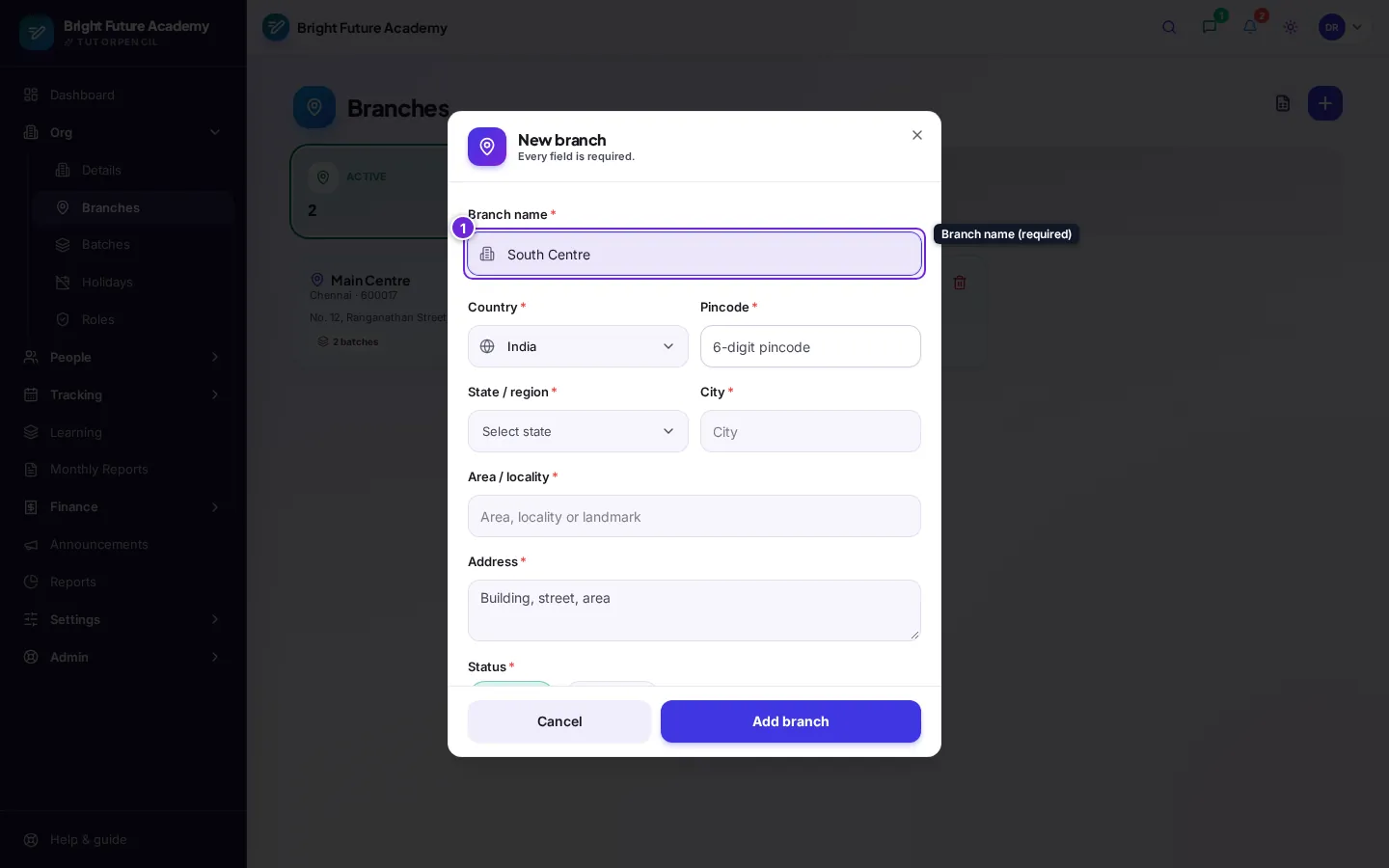
- Fill the Branch name (for example "Green Park centre"), city, pincode and address. Every field is required.
- Save, then pick the branch when you create a batch.
How it works
Every batch belongs to a branch. The Branches screen has two tiles — Active and Inactive. Each card shows how many batches the branch has.
Daily use
- Each card has three buttons: Edit (pencil), Make inactive (pause) or Make active again, and Delete (bin).
- Make inactive moves a branch to Inactive. It is no longer offered for new batches, students or enquiries, but its records stay.
Troubleshooting & FAQ
A branch is missing from the batch form — it's inactive. Open the Inactive tile and press Make active again.
Related pages: Organisation detailsBatchesTimetable