
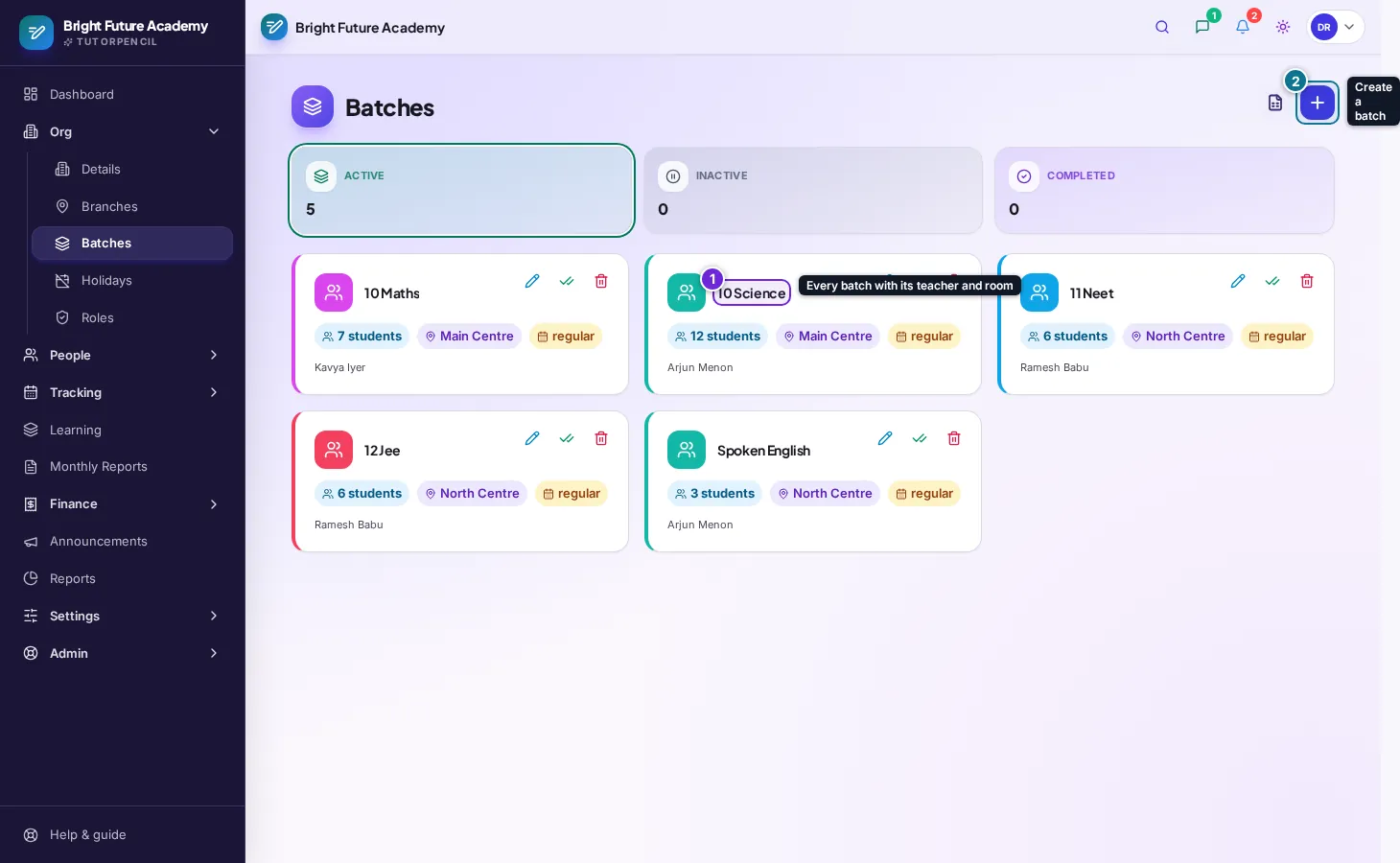
- Open Org → Batches and press Add batch (or Import batches to load many from a sheet).
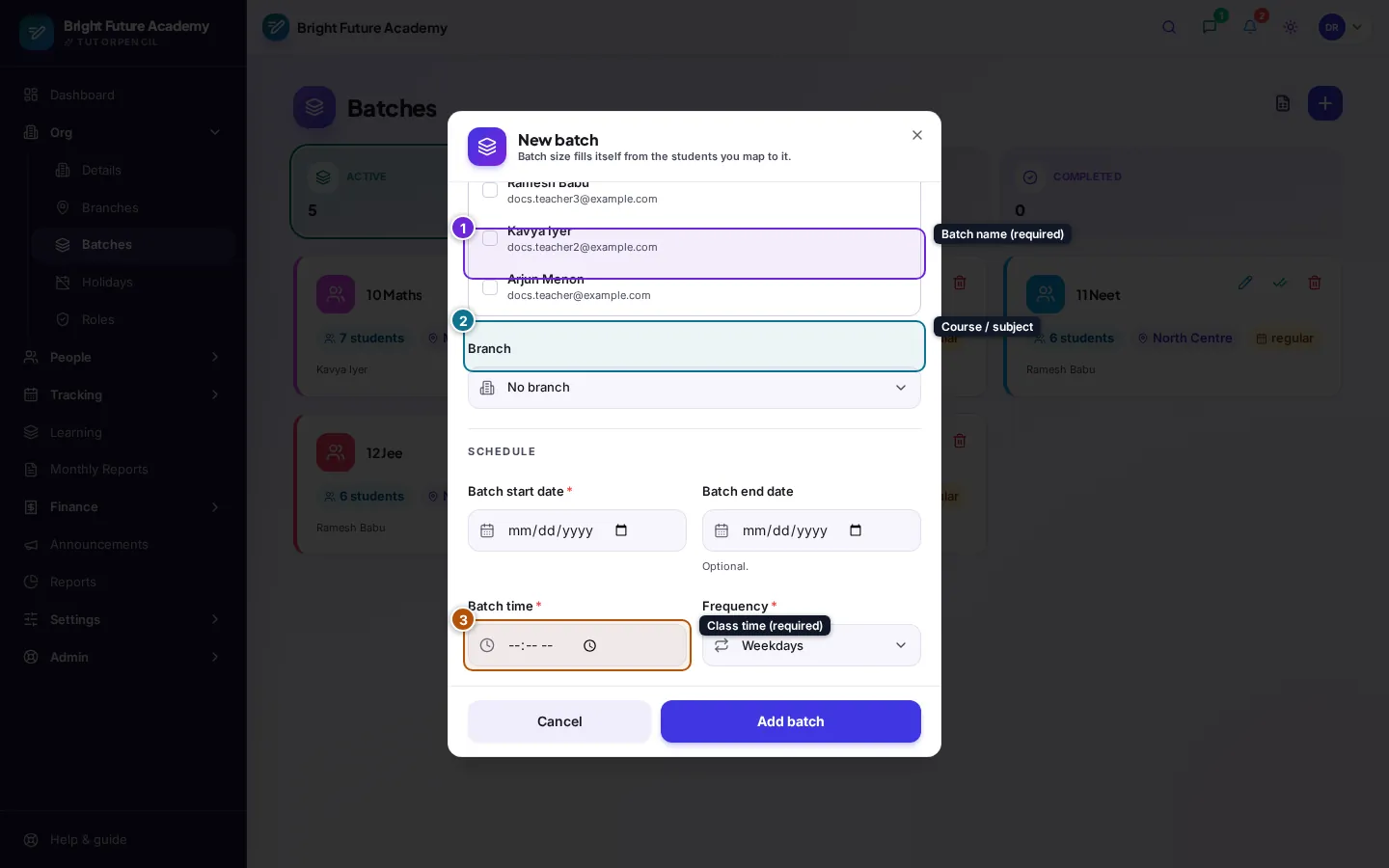
- Fill Batch name (for example "Class 10 — Morning") and Course / Subject details.
- Choose the teachers and the Branch (institutes only).
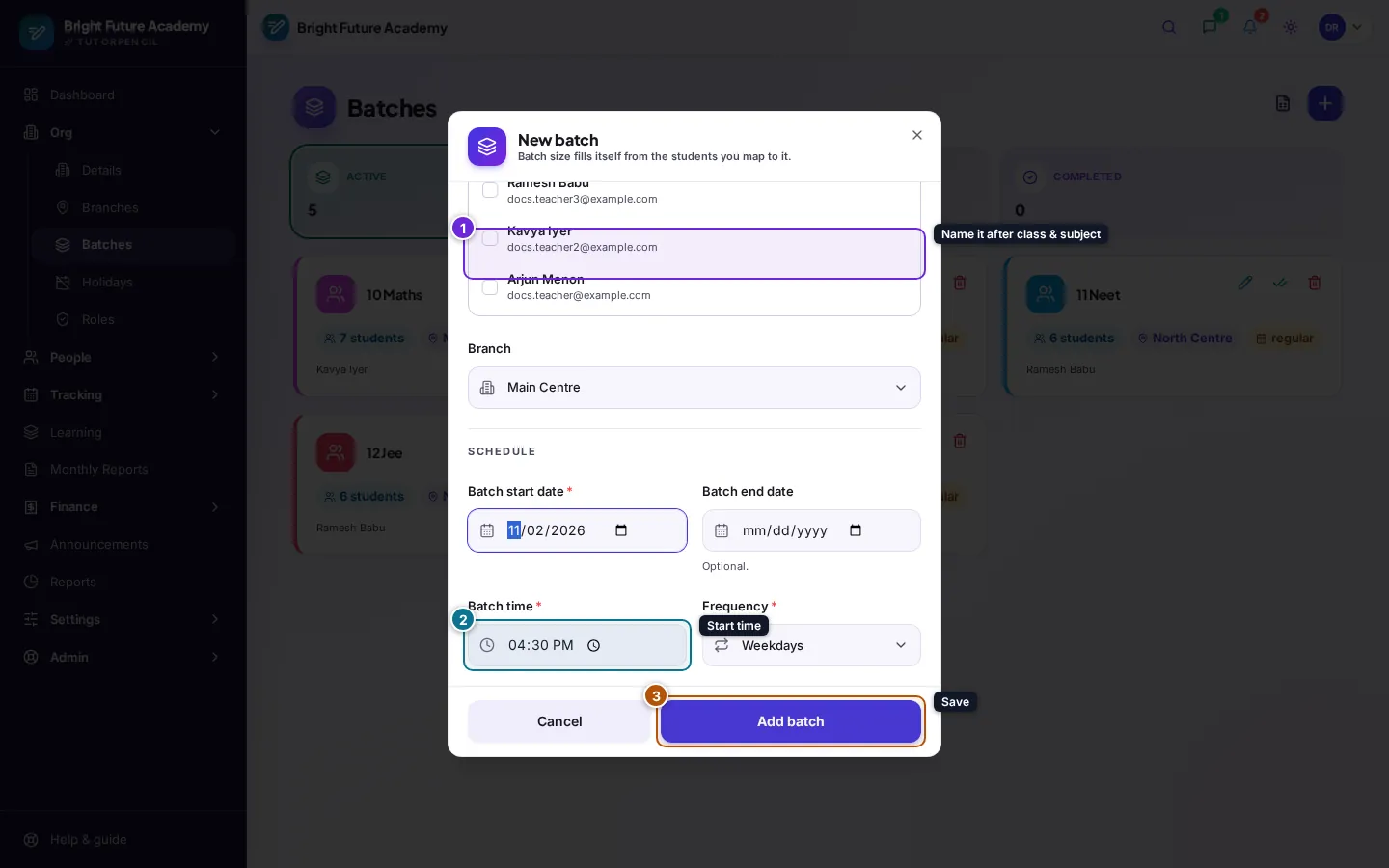
- Set Batch start date, an optional Batch end date, the Batch time and the Frequency — Weekdays, Weekend, Daily or Custom days (then pick the Class days).
- Save. The batch size fills itself from the students you put in it.
How it works
Every learner belongs to a batch. The batch decides their course, branch, timetable and the class they appear in for attendance, tests and homework. The Batches screen has three tiles — Active, Inactive and Completed — press one to filter the list.
Daily use
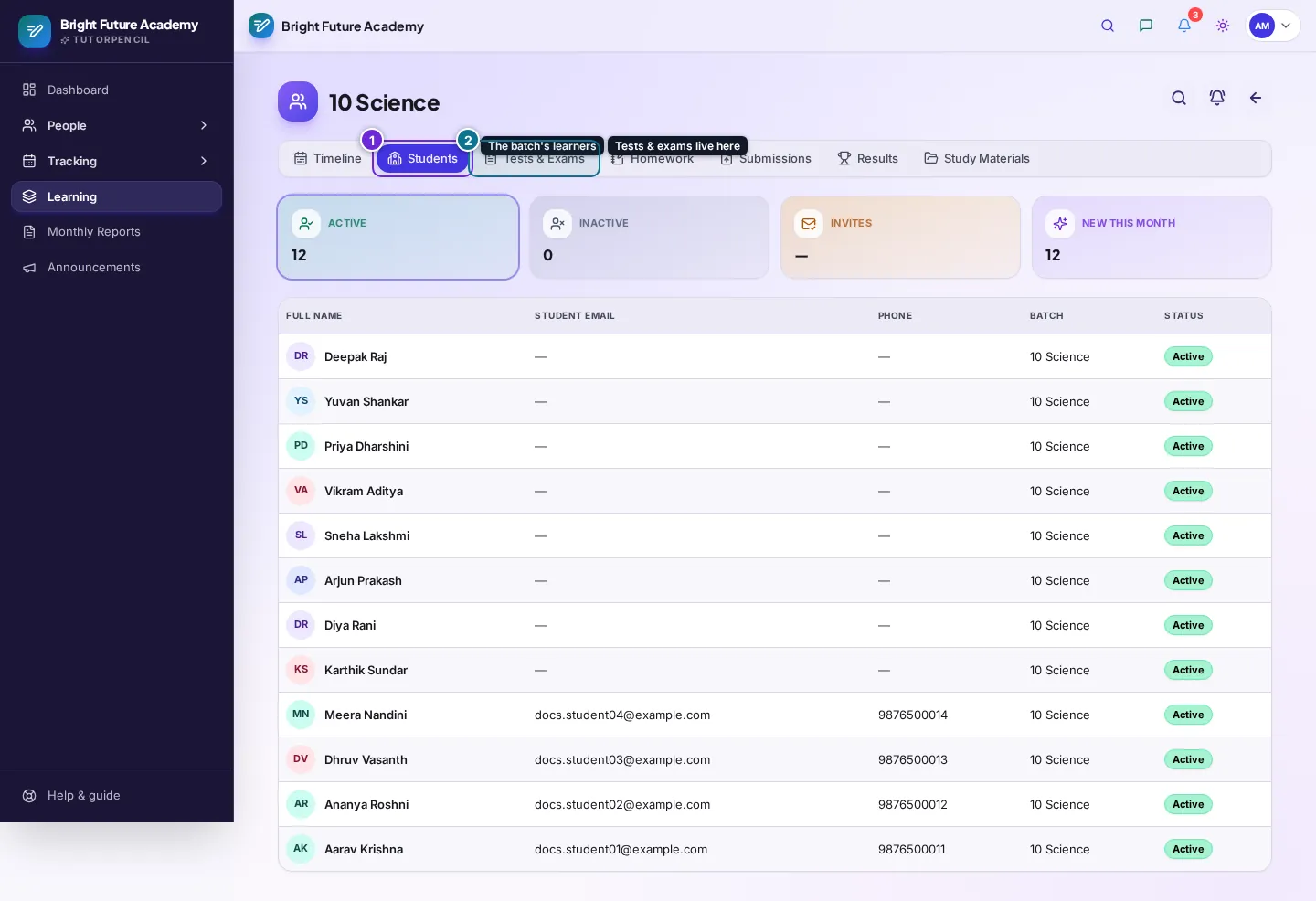
- Open a batch from Learning to see its students, tests, homework, submissions, results and materials in one place.
- Inside a batch, one line at the top holds search, add, Send class reminder (a bell) and back to all batches.
- When a course ends, use Mark completed. You can Make active again later.
Troubleshooting & FAQ
I can't delete a batch — it still has students. Move them (People → Students → Bulk actions → Move to batch) or mark the batch inactive. A teacher doesn't see a batch — add them as a teacher of that batch.
Related pages: TimetableStudentsLearning — inside a batch