
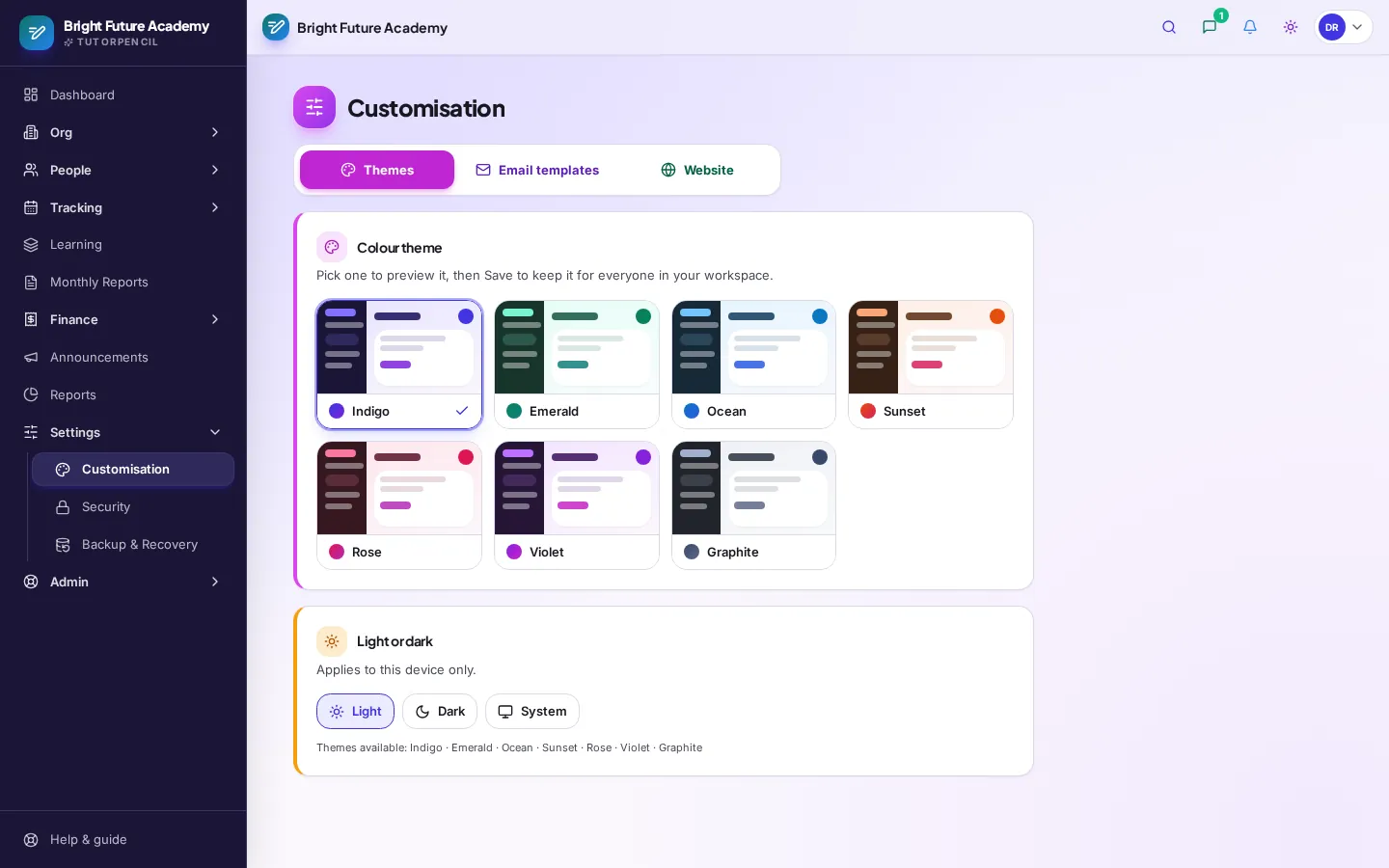
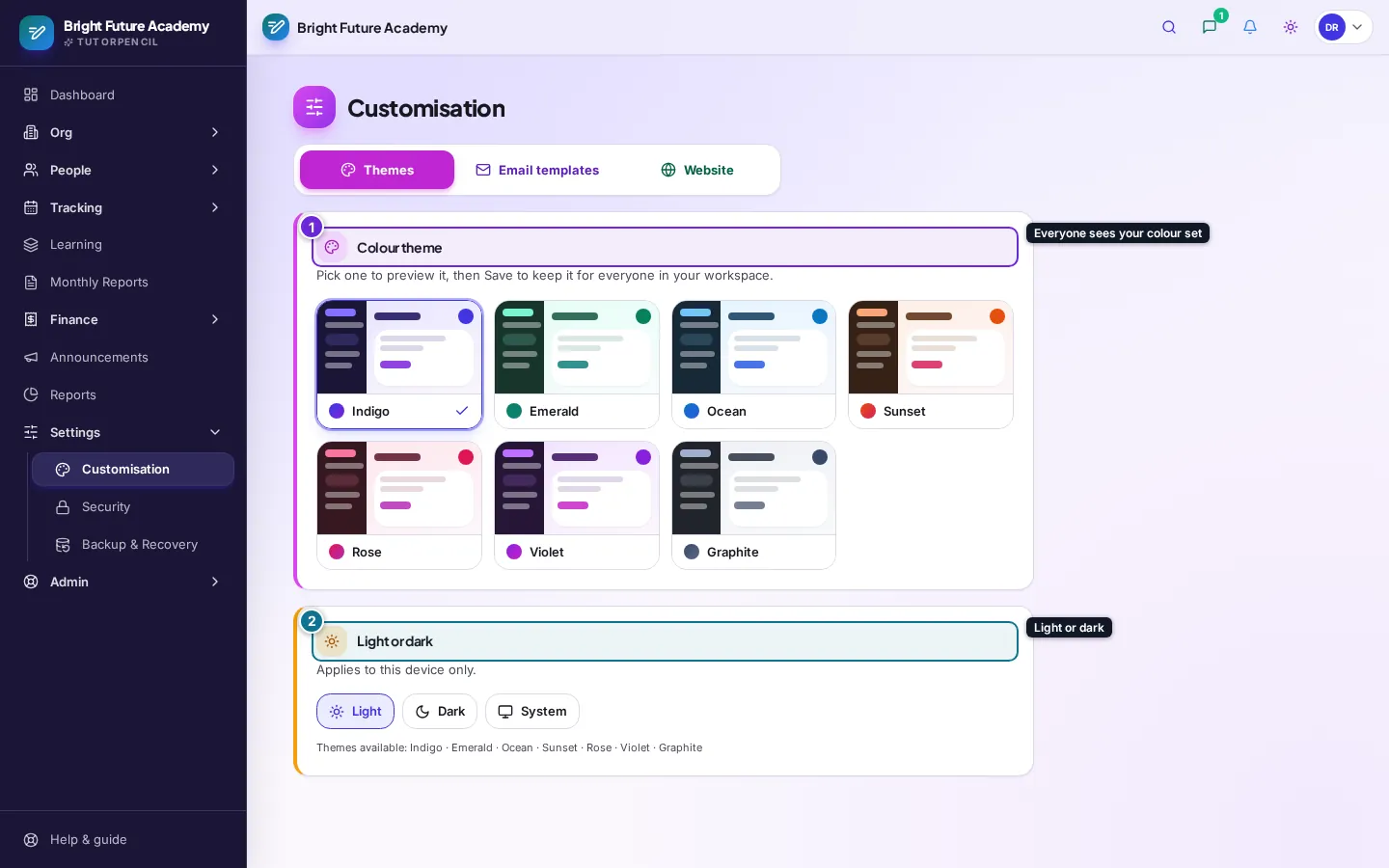
- Open Settings → Customisation → Website and press Create your institute website.
- Choose your web address (it shows Available when free) and, optionally, tell the AI anything it should know — for example what you teach and where.
- The website is drafted from your institute's data. Nothing is public until you press Publish.
- Edit any section by hand — top banner, about, courses, teachers, results, testimonials, FAQ and contact — or type what to change in Tell the AI what to change. Undo reverses the last change.
- Tick only teachers who agreed to appear; their name, photo and subjects show.
- Publish. Visitors see your changes within a minute of saving.
Daily use
- Every enquiry from the website lands in your Enquiries list, and you get a notification.
- Rewrite writes every section again from your latest data; Undo brings back the current version.
- Unpublish takes the site offline — visitors see "Coming soon" until you publish again.
Troubleshooting & FAQ
Visitors still see old text — wait a minute after saving and reload. My domain doesn't connect — check the CNAME record and press Check again; some providers take a few hours.
Related pages: Enquiries, the public form and free trial classesAnnouncementsOrganisation details