
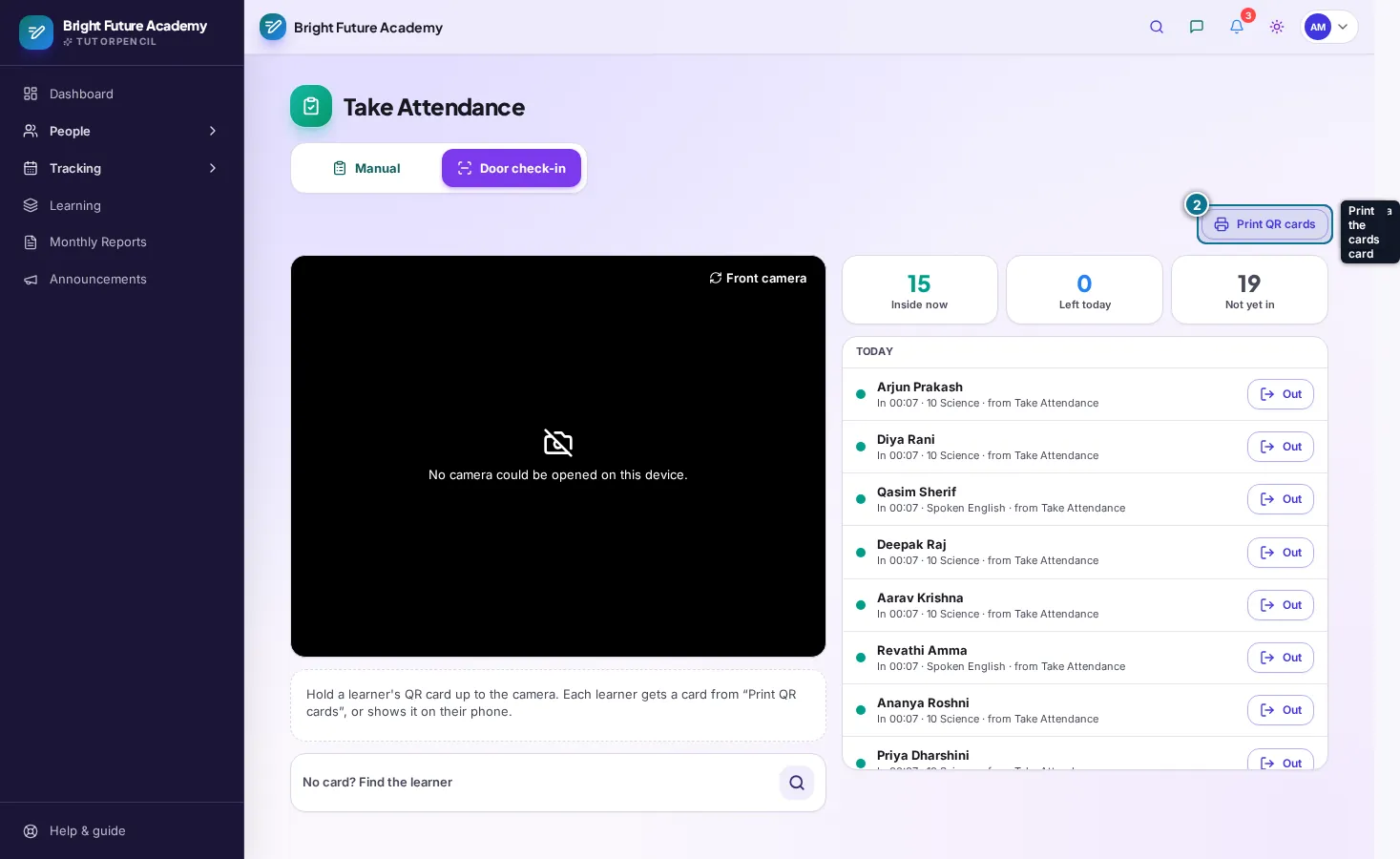
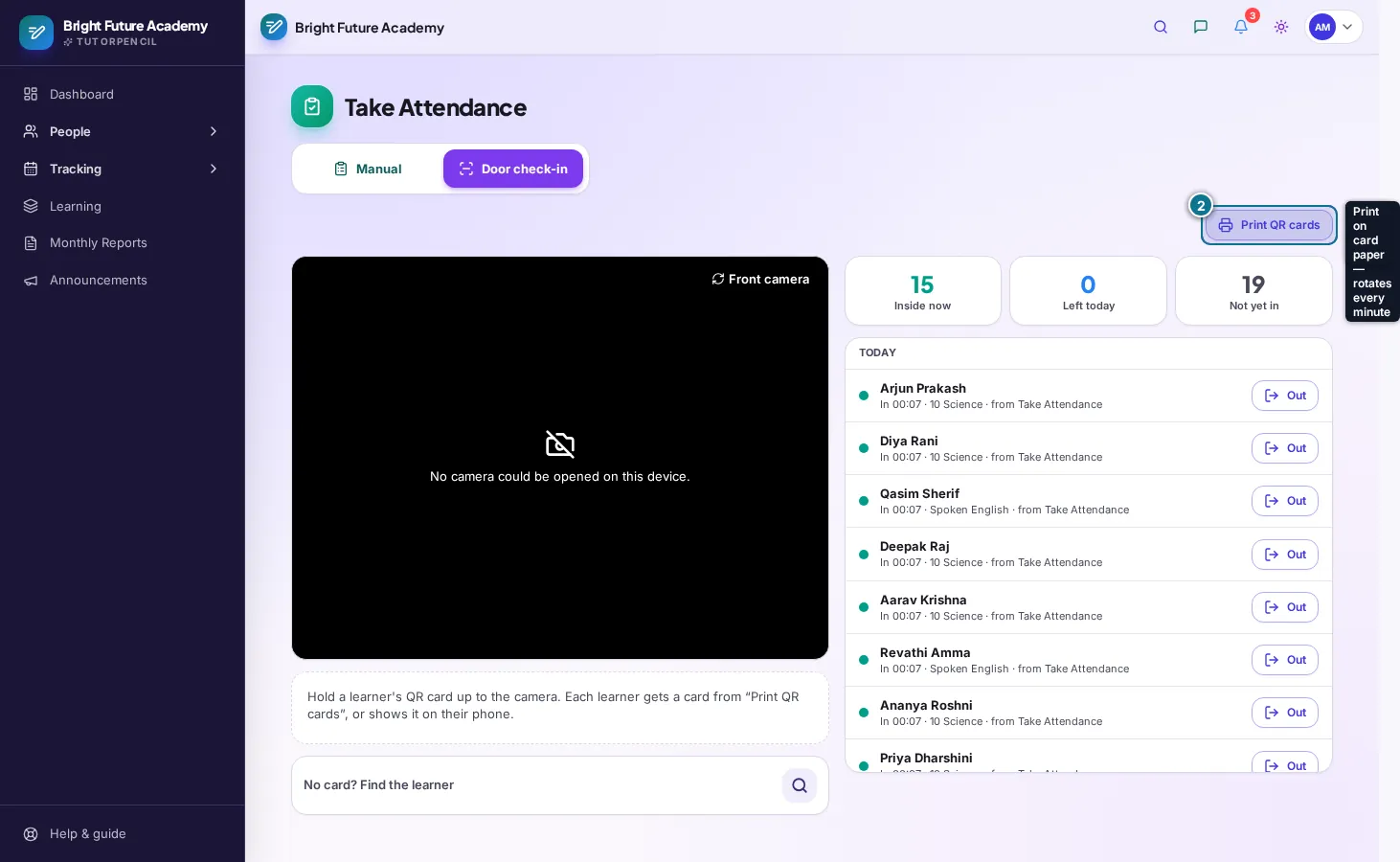
- Open Tracking → Take Attendance → Door check-in and print the cards with Print QR cards. Give each learner their card. Students and parents also see the card on their Dashboard, so it can be shown on a phone.
- Open Door Check-in on a tablet or phone near the door and allow the camera.
- Hold a learner's QR card up to the camera.
How it works
Each learner has a QR card. Scanning it at the door checks the learner in, marks them present and tells the parents. The next scan the same day checks them out.
Daily use
- The first scan of the day checks the learner in; the next scan checks them out.
- No card? Use No card? Find the learner — search by name, ID, batch or phone — and check them in by hand.
- The list shows who is in today and who has gone Out.
Troubleshooting & FAQ
The camera doesn't start — allow camera access for TutorPencil in the browser settings. A parent didn't get the arrival alert — they need notifications turned on (Profile → Phone notifications); the bell inside the app always shows it.
Related pages: Taking attendanceStudentsParents and guardians