
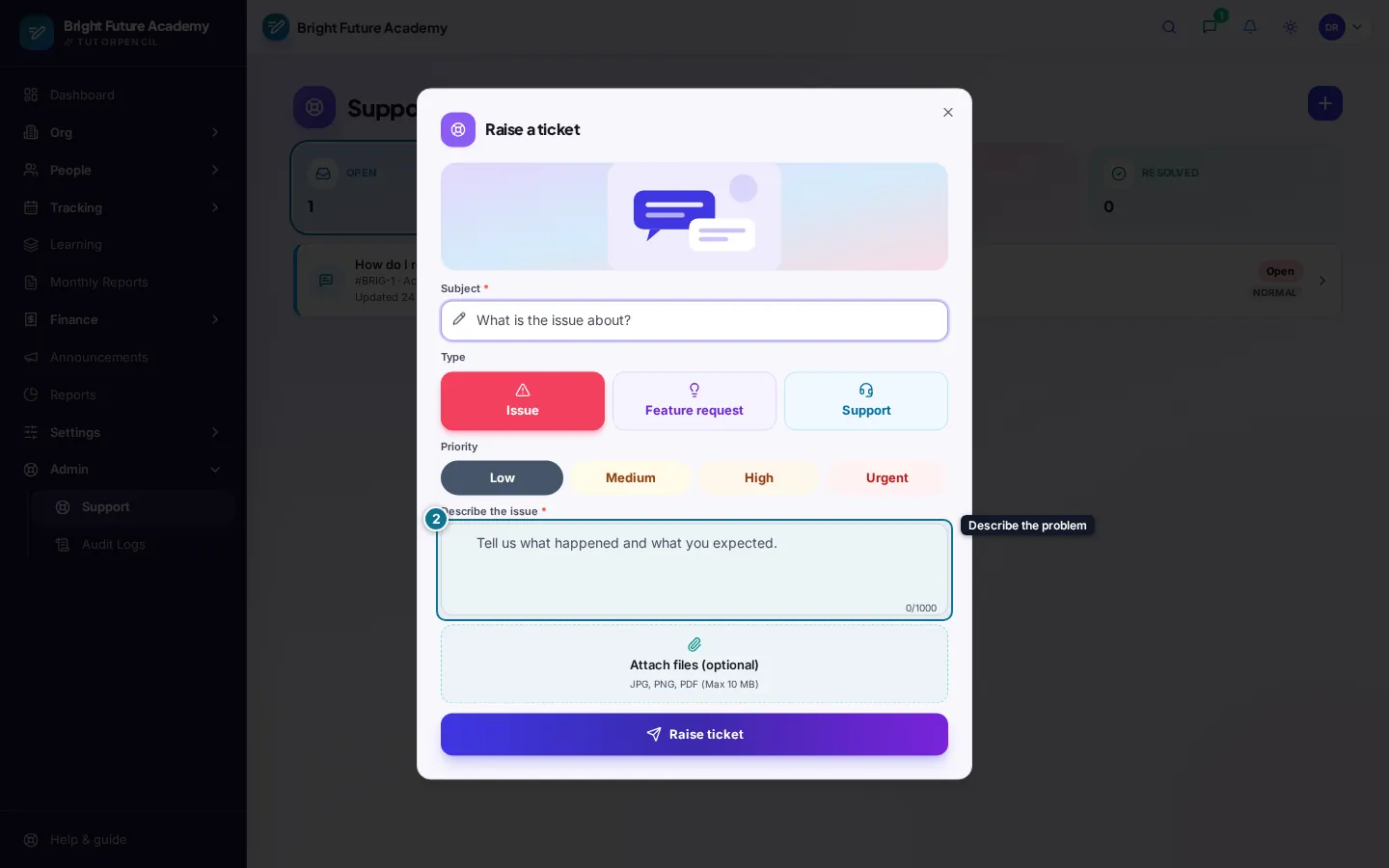
- Open Admin → Support (owners and admins) or Support from your profile icon, and create a ticket.
- Choose the Ticket type: Issue, Feature request or Support.
- Choose the Priority: Low, Medium, High or Urgent.
- Write the Subject and what the issue is about. Attach files (optional) — JPG, PNG or PDF, up to 10 MB.
- Send. You're notified whenever the team replies or changes the status.
How it works
A support ticket goes to the TutorPencil team. Each ticket has a reference made from your institute's 4-letter code and a running number — for example ROYB-12 — so it's easy to quote and track.
Daily use
- Your tickets are listed by status: Open, In progress, Resolved.
- Open a ticket to see the conversation, Attach files and reply.
Troubleshooting & FAQ
No reply yet — replies show in your notifications. You can add a reply to the ticket to give more detail. An old screenshot shows as removed — files are removed a set number of days after the ticket closed. Attach it again if needed.
Related pages: Notifications (the bell)Roles and who can do what