
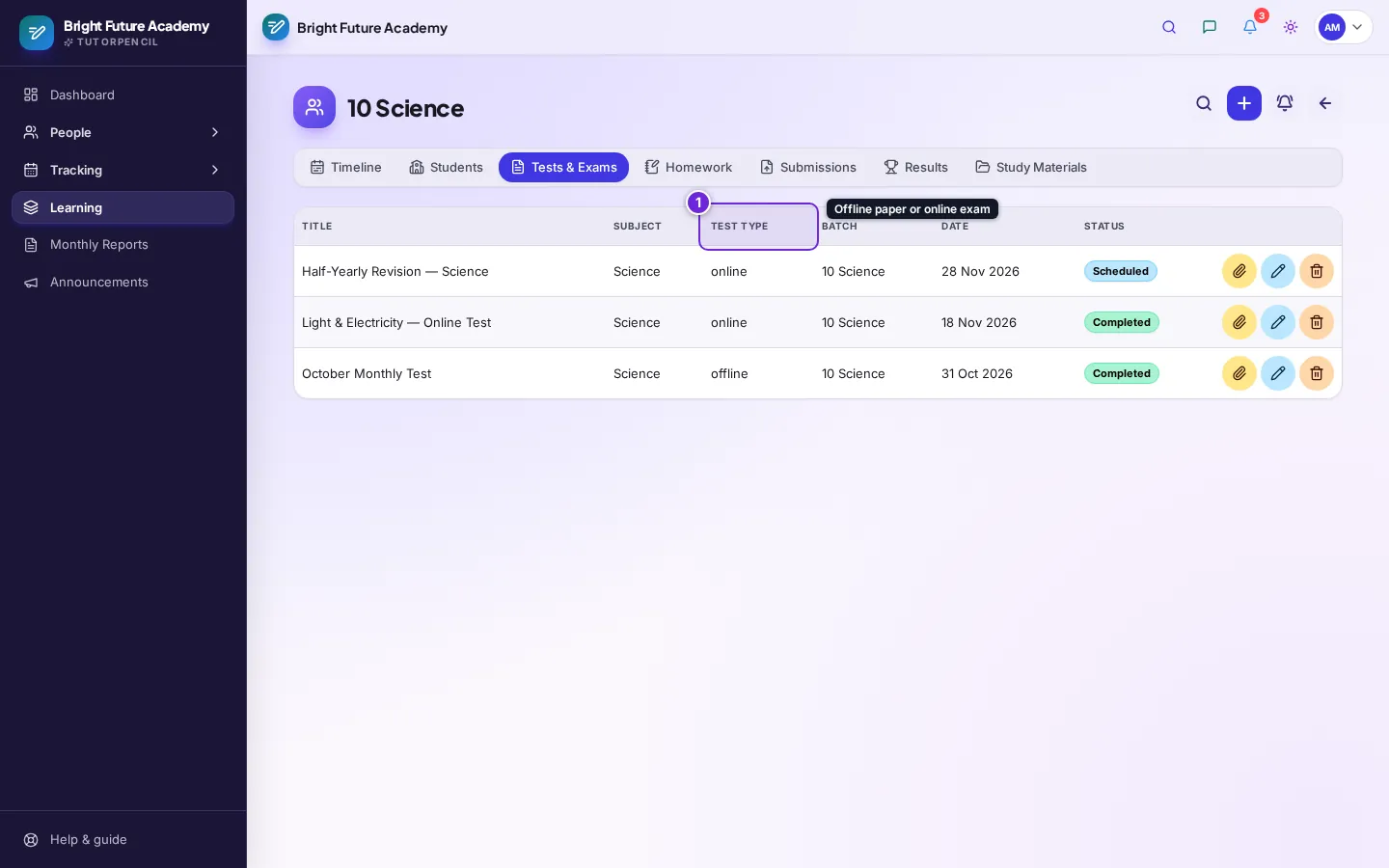
- Open Learning, pick the batch and add a test.
- Fill Test name, Subject, Date, Max marks and Pass marks. For an online test add Starts, Ends and Duration (minutes), and Instructions for students.
- Offline test: save; enter marks after the test on the results sheet.
- Online test: add questions in the Question paper yourself (Add question, with Marks and a Topic for topic-wise results), or let AI write them from your Learning material — choose Difficulty (Easy, Medium, Hard), Question types and Questions.
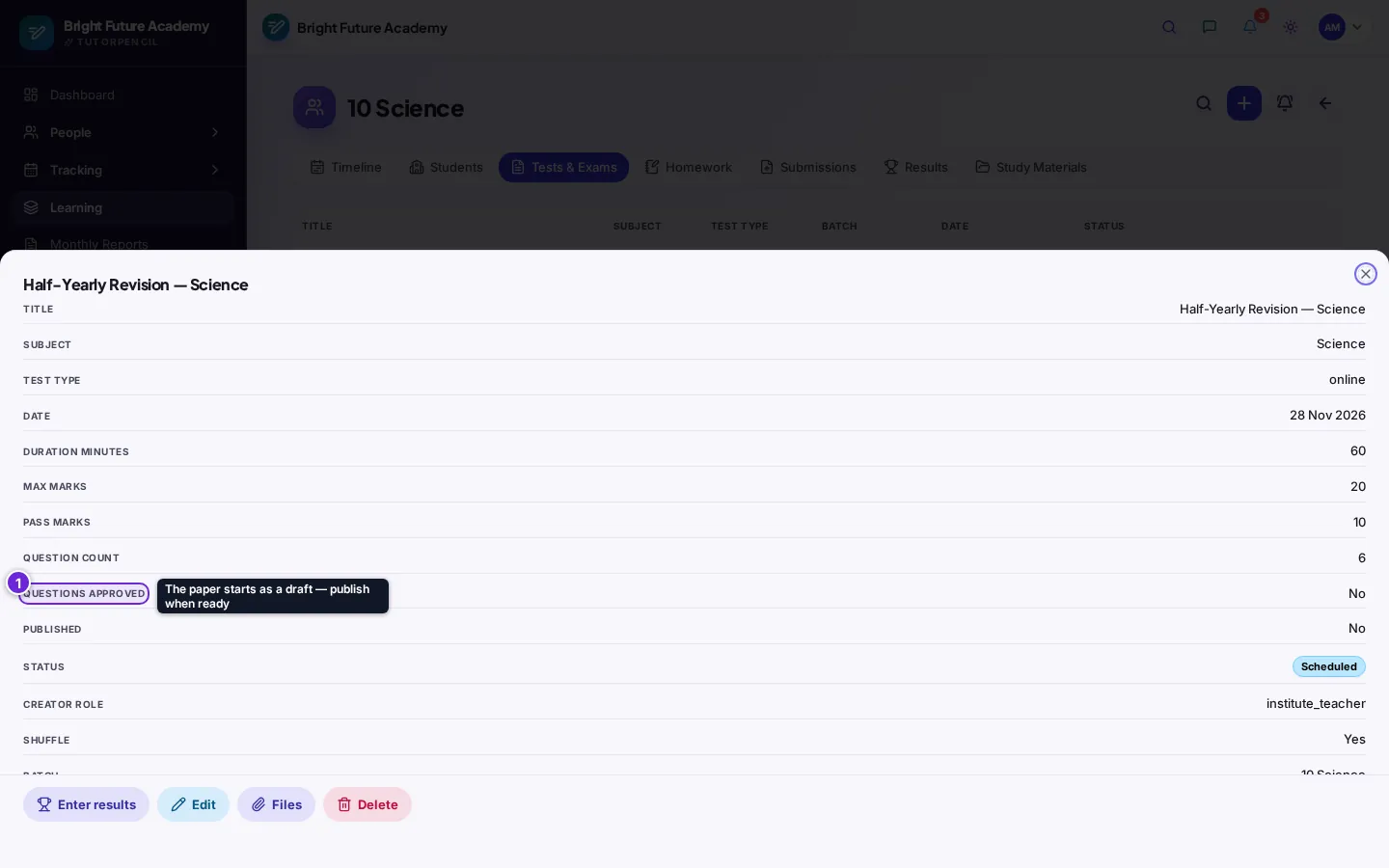
- Review the paper and tick I have reviewed the questions and their answers. Answers stay hidden from students.
- Publish. The batch is notified ("Published to … students").
Daily use
- Shuffle questions and choices for each student to reduce copying.
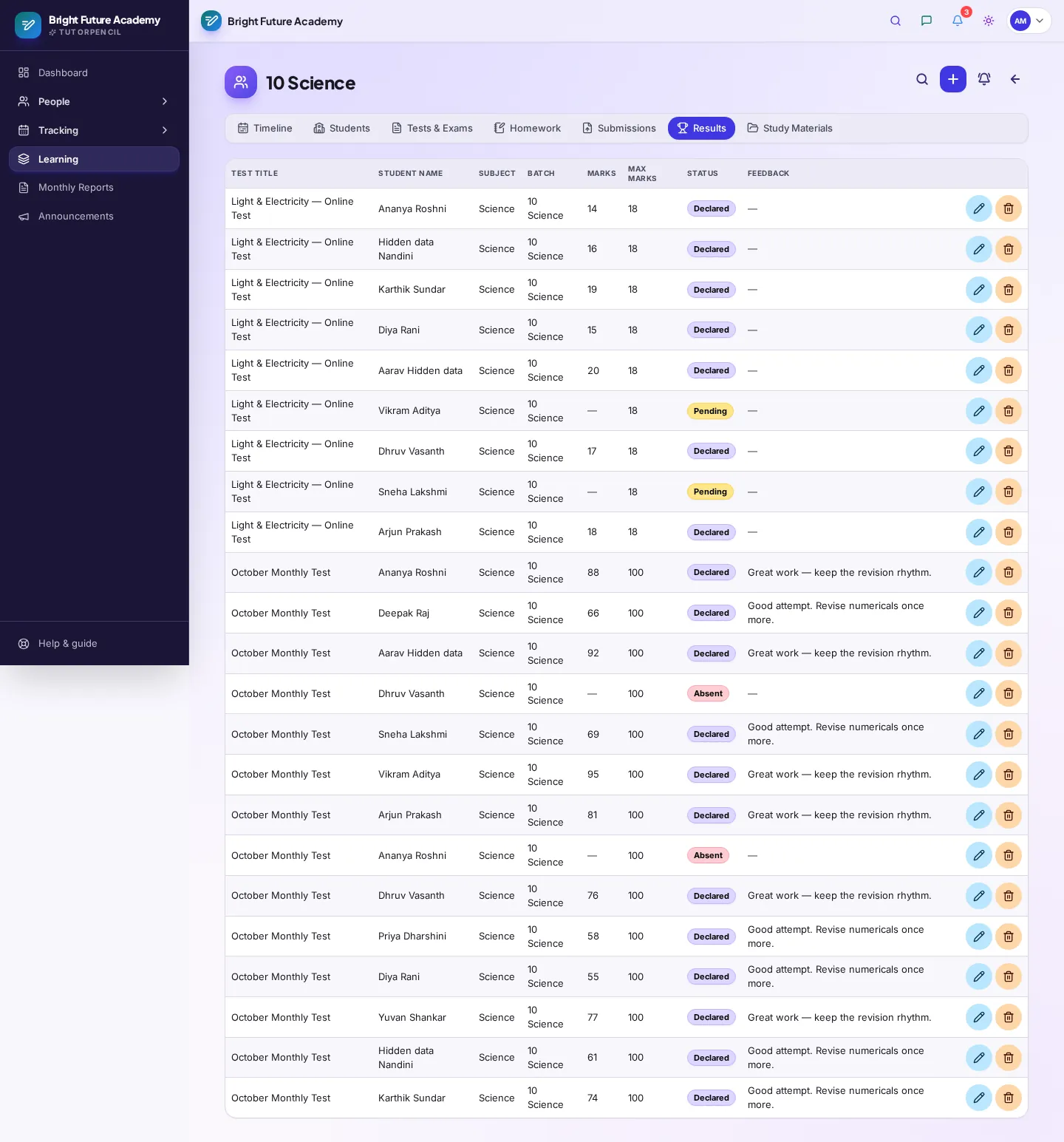
- Enter or check marks on the results sheet and publish them with Publish to parents & students.
- Cancel this test asks Why is this test cancelled? — learners and parents are told the reason.
Troubleshooting & FAQ
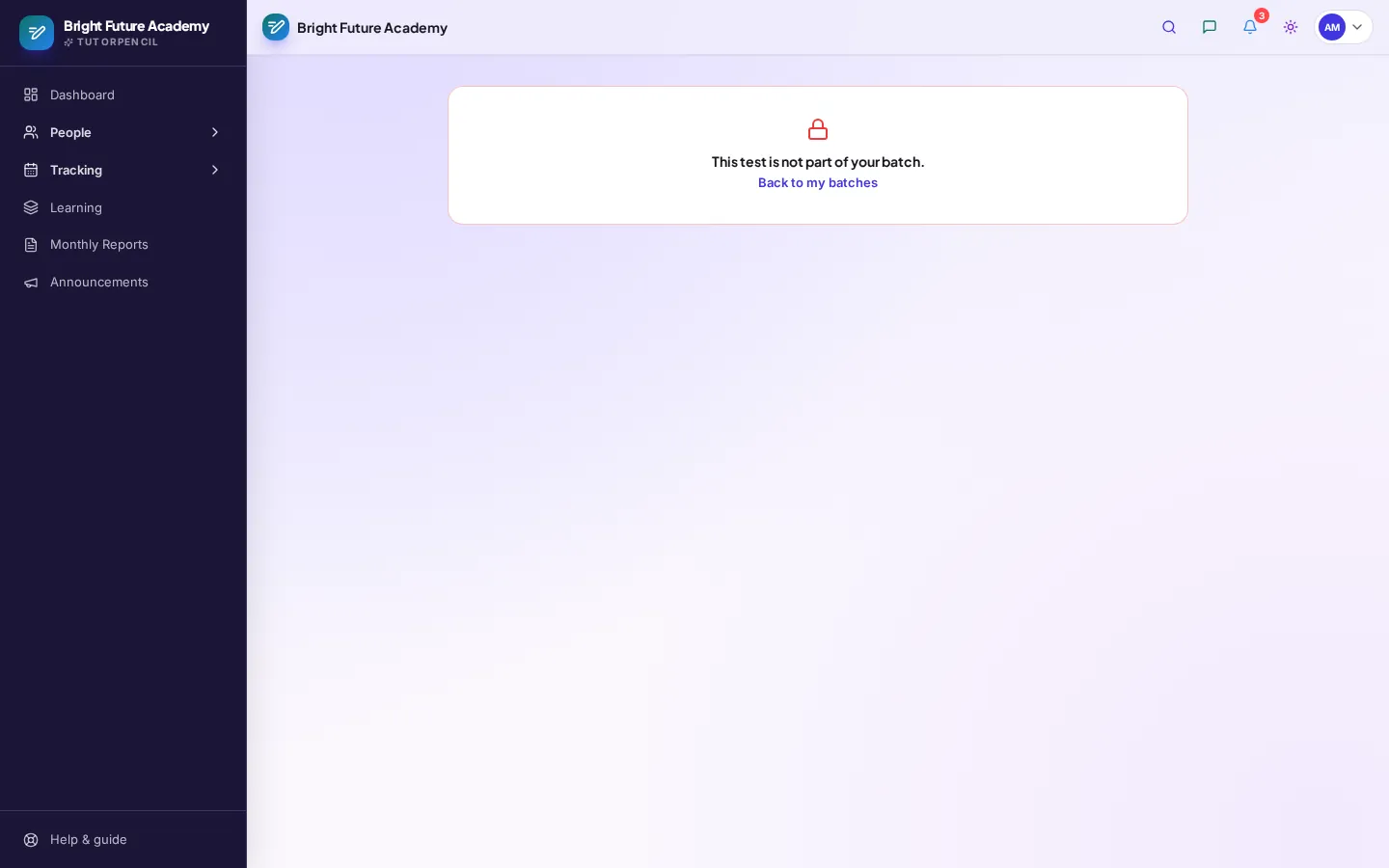
"No eligible students yet" — publish the test so it reaches the batch. AI couldn't read a file — use a PDF or text file, or paste the material as a link it can open.
Related pages: Learning — inside a batchTopic masteryResults & report cards