
- Open the test's results from the batch.
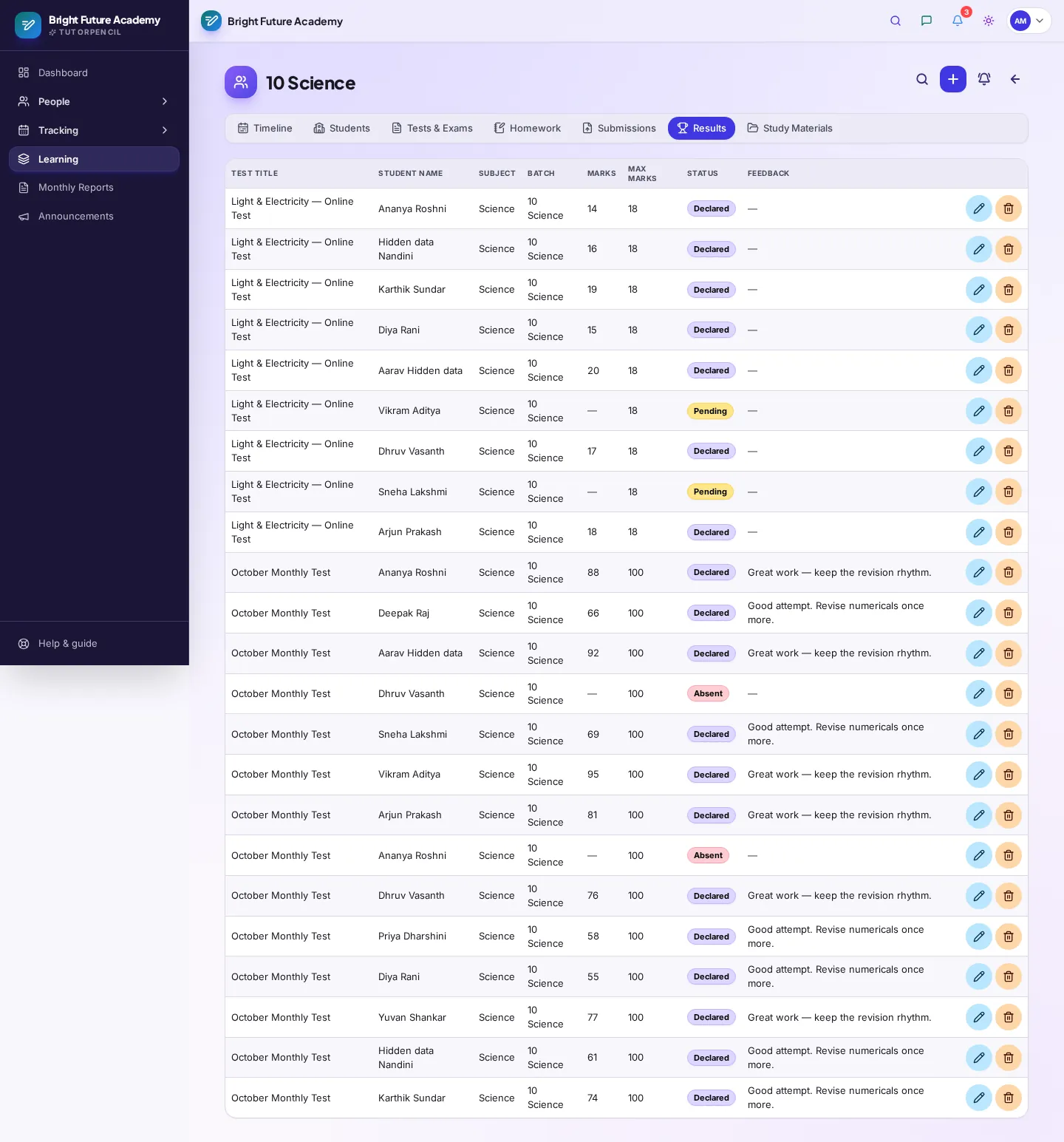
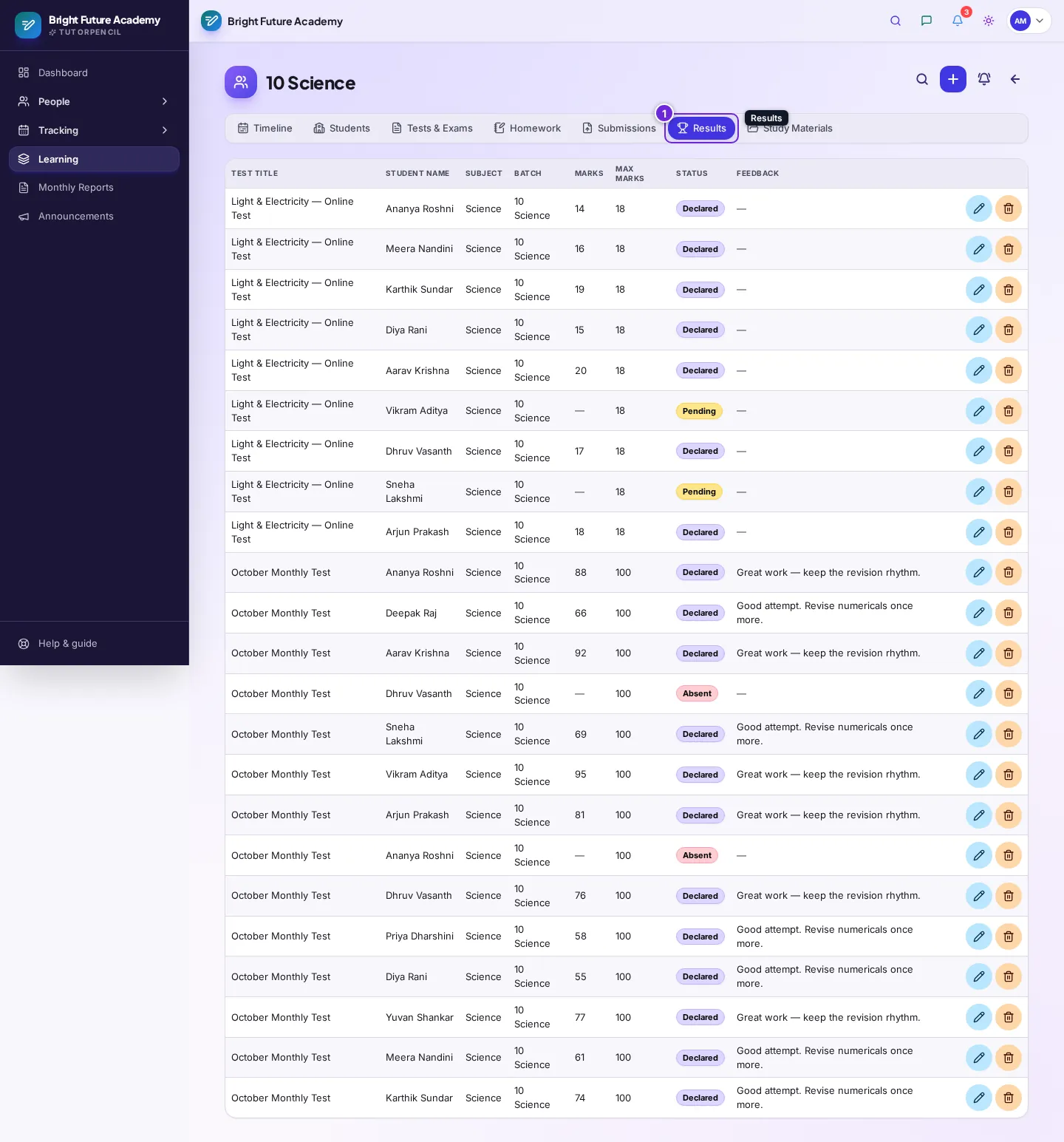
- Enter or check each learner's marks and feedback. Mark absent learners as Absent.
- Press Publish to parents & students when the marks are final.
How it works
Each test has a results sheet with one row per learner: Marks, or Absent, and Feedback for the student. Online tests fill the objective marks automatically; written answers can show an AI suggestion for you to accept or change. Learners and parents see results only after you publish them.
Daily use
- Download report card (attendance and results) from a learner's record.
- Results also feed the monthly parent report and the topic-wise results.
Troubleshooting & FAQ
Families can't see marks I entered — the results aren't published yet. Press Publish to parents & students.
Related pages: Tests, online exams and resultsTopic masteryAttendance calendar & day roster