
- Open Profile and find Two-step sign-in. Press Set up.
- Open your authenticator app and scan the code shown (or type the key below it).
- Enter the 6-digit code the app shows and press Turn on.
- For a passkey, open Profile → Passkeys and press Add a passkey on this device.
How it works
- Two-step sign-in asks for a 6-digit code from an authenticator app (Google Authenticator, Microsoft Authenticator and similar) at every sign-in, in addition to your password or Google sign-in.
- Passkeys let you sign in with your device's fingerprint, face unlock or screen lock, using Sign in with a passkey on the sign-in page.
- An institute can make two-step sign-in compulsory for staff (Settings → Security → Require two-step sign-in for staff). Your Profile then shows Required by your institute.
Daily use
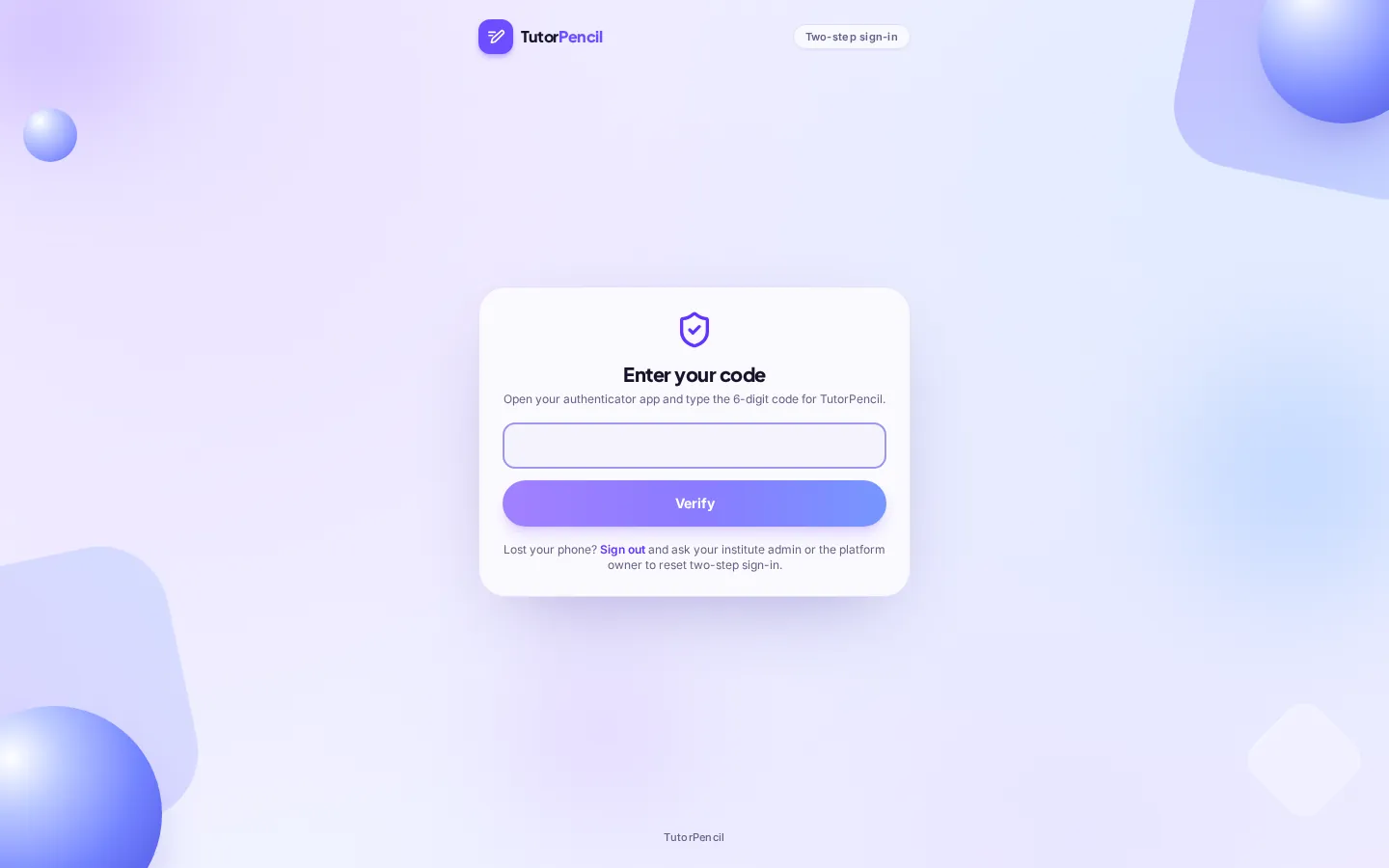
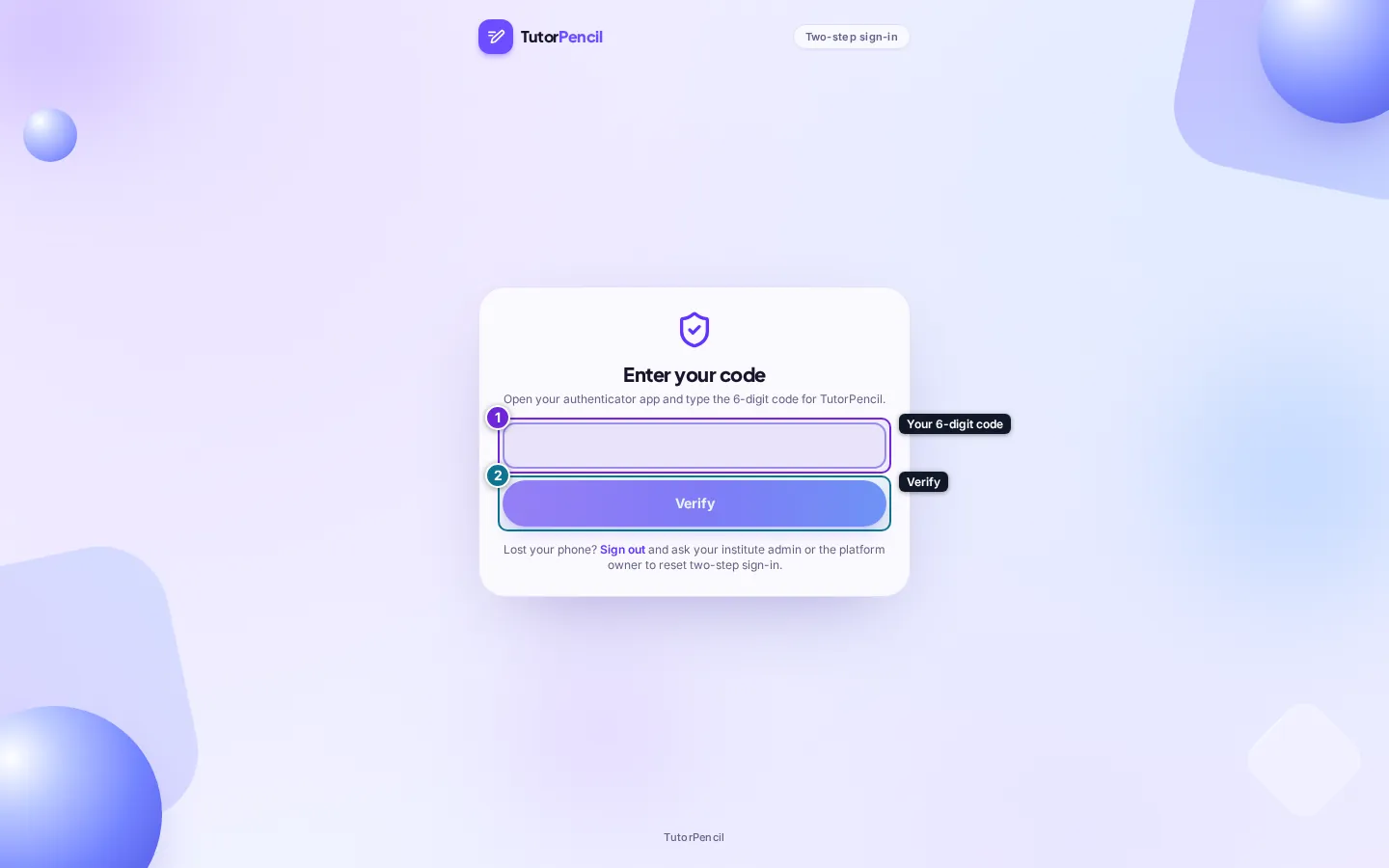
- When you sign in, the Enter your code screen asks for the current 6-digit code.
- To remove a passkey, press Remove passkey next to it.
Troubleshooting & FAQ
The code is rejected — make sure your phone's clock is set automatically; authenticator codes depend on the correct time. I lost my phone — contact the TutorPencil team through Support (or ask your institute owner to raise a ticket for you) to get back in.
Related pages: Sign in, passwords and GoogleSecurity rules for your institute