
Nothing to turn on. Press the search box, Ctrl+K (⌘K on a Mac) or /, and type.
How it works
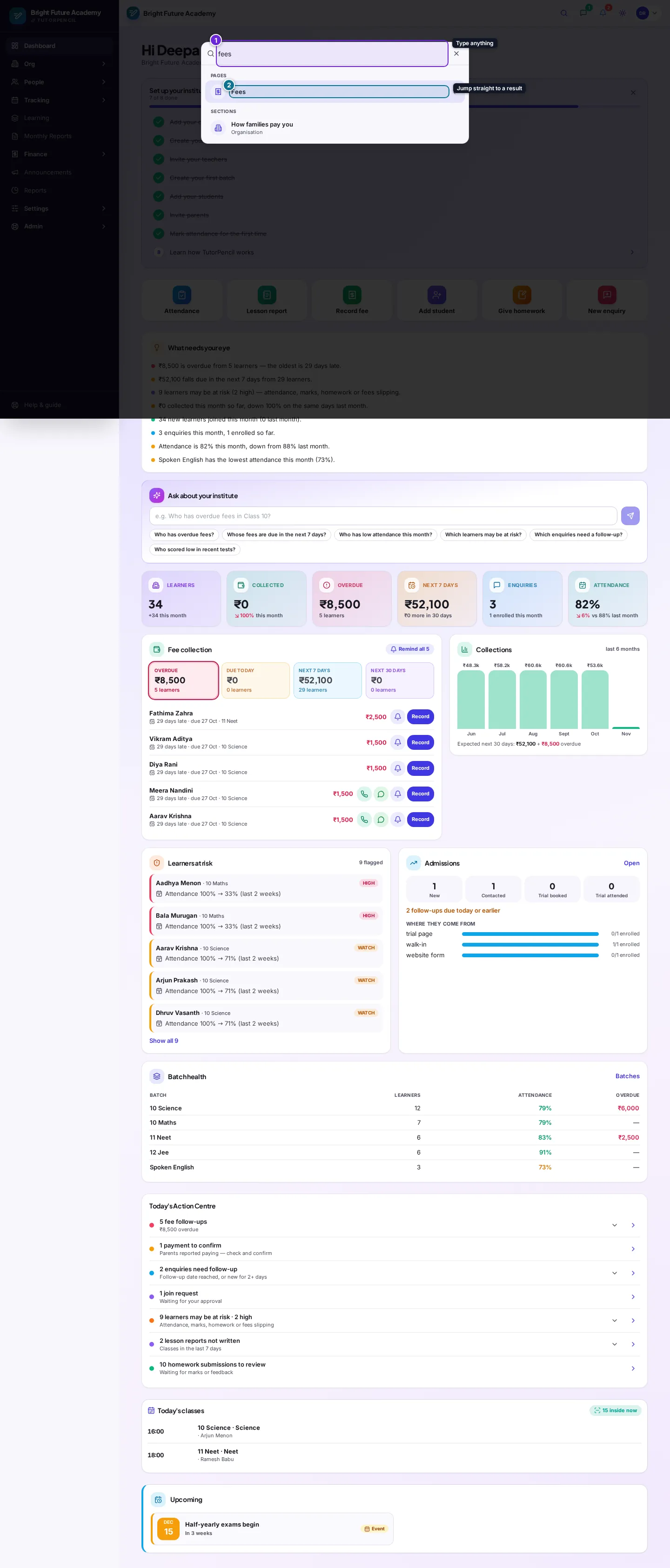
Search shows up to three kinds of result:
- Pages — menu screens such as Fees, Timetable or Attendance.
- Sections — parts of a settings page, such as Email templates, a security setting or "How families pay you". Pressing one opens the page and scrolls straight to that section, which glows briefly.
- Records — people and other records in your institute, found as you type (at least 2 letters).
You only ever see results your role is allowed to open.
Daily use
- Type a learner's name to jump to their record.
- Type a screen or setting name — "timetable", "qr", "email templates", "backup" — to go straight there.
- Use the arrow keys to move through results and Enter to open one.
Related pages: Dashboard