
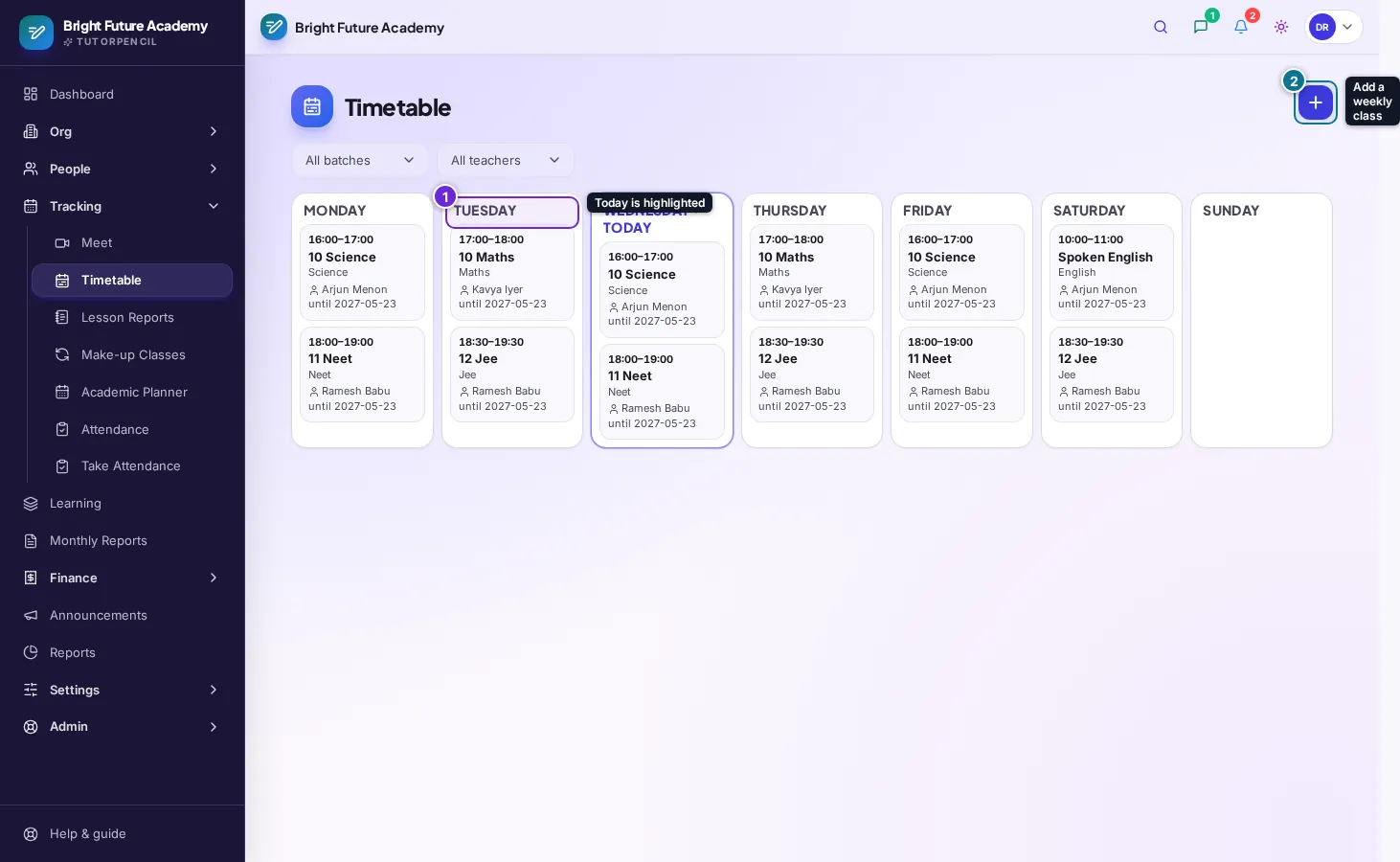
- Owners and admins: press Add class.
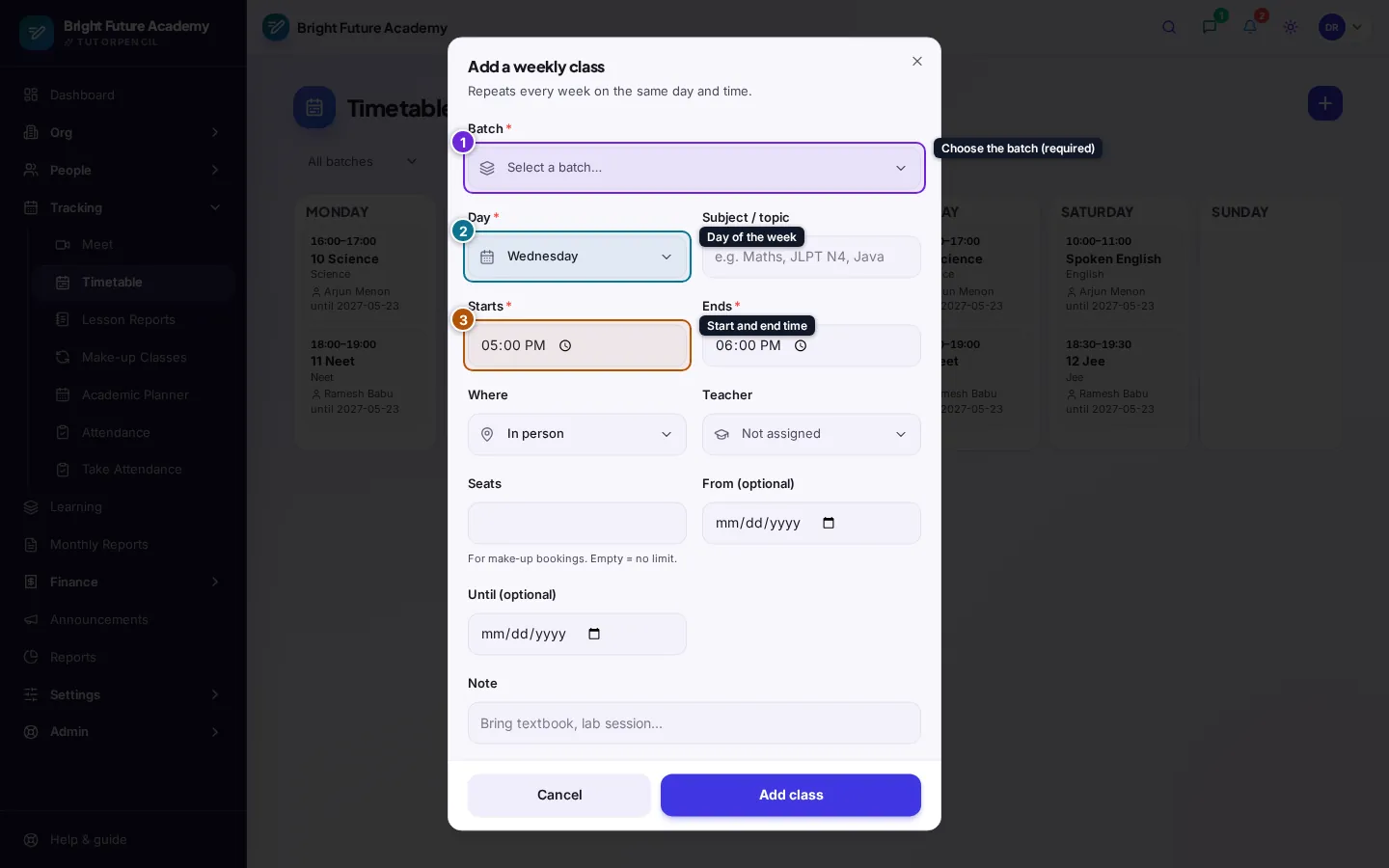
- Pick the Batch, Day, Subject / topic, Starts and Ends, Where (In person or Online) and Teacher.
- Optional: Seats (for make-up bookings — empty means no limit), From / Until for a term-only class, and a Note.
- Save. If the teacher or batch is already busy at that time, a Clash warning appears — change the time or press Save anyway.
How it works
Each class repeats every week on the same day and time. The timetable decides which classes appear for attendance and lesson reports. Teachers see their own classes highlighted; students and parents see only their batches.
Daily use
- Filter with All batches / All teachers.
- Open a class to edit it, or Remove class.
Troubleshooting & FAQ
A class doesn't show for attendance — check its day, and the From / Until dates.
Related pages: BatchesTaking attendanceAcademic planner & holidays